What Can You Do With This?
From Demo to Daily Driver
By the end of this module, you’ll know how to use a local model for writing, document analysis, coding assistance, and basic automation — and when to set up a simple agent.
You’ve been typing prompts into a terminal window. A real interface and some tooling around the model opens up a lot more.
This module covers the main ways people use local models, from chat interfaces and writing tools to document analysis, coding assistants, and autonomous . Some of these are for everyone, some lean toward developers, and we’ll be clear about which is which.
A Real Chat Interface
The first upgrade from terminal chat is a proper interface. Conversations you can search. Files you can drop in. Multiple chats running side by side. Model switching in a dropdown.
Open WebUI
The most popular option. It looks and feels like ChatGPT, but everything runs on your machine. Connects directly to your existing Ollama models.
The quickest install if you have Python:
pip install open-webui
open-webui serve
Open localhost:8080 in your browser. It auto-detects your Ollama models.
New to the command line? The command above uses pip, Python’s package installer. If you don’t have Python, grab it from python.org. Open WebUI also has a desktop app and other install options if you’d rather skip the terminal entirely.
Open WebUI handles conversation history, model switching, document uploads, web search, and a growing set of community plugins. Everything runs on your machine.
Other Interfaces
LM Studio is a desktop app with a built-in model browser. Download, compare, and chat with models in one window. No terminal needed.
Unsloth Studio combines chat with training capabilities. Use models and eventually them, all in one place.
All of these connect to the same models. You don’t need to download anything twice.
System Prompts: Shaping How the Model Behaves
Every chat interface lets you set a system prompt: instructions the model reads before your conversation starts.
System prompt: "You are a concise technical editor. When the user
pastes text, improve clarity and grammar. Keep the original meaning.
Explain each change briefly."
Now every message in that conversation gets the editor treatment. You can create different chats with different system prompts: one for editing, one for brainstorming, one for Q&A. Same model, different behavior.
A Personal Assistant on Your Terms
A local model with the right tools connected can handle parts of your daily workflow without sending anything to a cloud service. A few concrete examples:
- Triage and draft email replies. The agent reads incoming messages, flags which ones need a response, and drafts replies in your writing voice. You review and send.
- Summarize and tag documents. Drop a folder of PDFs, contracts, or notes into a watched directory. The agent processes each file, writes a short summary, and tags it by topic so you can find things later.
- Run scheduled briefings. Set up a morning summary: the agent scans your notes, pulls upcoming tasks, and writes a short brief. Everything stays local.
Tools like OpenClaw bring this into your messaging apps (Telegram, WhatsApp). Your model runs at home, you chat with it from anywhere, and nothing hits a cloud server.
A word on security. Any tool that gives an AI agent access to your accounts (email, messaging, file system) can do real damage if misconfigured. An agent with full permissions to your inbox could delete messages, send replies on your behalf, or leak private data. Before connecting any agent to personal services: read the permissions it requests, restrict access to the minimum it needs, and test on a throwaway account first. This applies to all agent tools, not just messaging integrations.
Writing, Research, and Getting Answers
Writing
Your model writes fast, which means you can iterate on drafts quickly instead of starting from nothing.
Need a project proposal? Tell it the topic, the tone, and the length, then edit the result into your voice. Have something you’ve already written? Paste it in and ask for a tighter version, or a rewrite for a non-technical audience. Stuck on phrasing? “Give me 10 subject lines for an email about a project delay” gets you options fast. You can also use it as an editor: “Check this paragraph for grammar and clarity. Don’t change the meaning.”
It gets you most of the way there, and you edit it into shape.
Research and Summarization
Drop a long article or report into the chat and ask questions about it. “Summarize the key arguments.” “What data does this cite?” “What’s the counterargument to the main claim?”
Academic papers, long reports, competing proposals. You can compare sources (“Here are three articles about X. Where do they agree?”) or extract structure (“Pull out every statistic in this text and put them in a table”).
Larger models with bigger handle longer inputs. A 9B model with 32K context fits roughly 25,000 words. For anything bigger, see the next section.
Everyday Questions
Local models handle plenty of practical tasks:
- “Explain this error message from my dishwasher manual”
- “Help me write a cover letter for this job posting”
- “Convert this recipe from imperial to metric”
- “What’s a diplomatic way to decline this meeting invitation?”
Quality varies by model size. For simple questions, even a 4B model works. For nuanced topics, 14B or larger handles them better.
Giving Your Model Your Documents
Chatting about a single pasted document is useful. For a whole folder of files, a knowledge base, or a documentation set, you need a different approach.
How Document Q&A Works
The model can’t read your files directly. Instead, a tool handles the retrieval:
- Your documents get split into chunks and indexed using (the same vector representations from Module 3A)
- When you ask a question, the tool finds the most relevant chunks
- Those chunks get inserted into the prompt alongside your question
- The model answers based on the retrieved context
This pattern is called (Retrieval-Augmented Generation). The tools handle the pipeline. You just ask questions.
Tools for Document Q&A
Open WebUI has document upload built in. Click the attachment icon, add PDFs or text files, ask questions. For a few files, this just works.
For larger collections (hundreds of documents, a codebase, a company wiki), dedicated tools do a better job:
| Tool | What It Does |
|---|---|
| AnythingLLM | Connects to Ollama. Create “workspaces” around document collections. |
| PrivateGPT | Fully offline. Local models, local embeddings, nothing leaves your machine. |
| Khoj | Personal AI that indexes your notes, documents, and bookmarks. |
Where It Works and Where It Doesn’t
Factual lookup is strong: “What’s our refund policy?” or “What did the Q3 report say about revenue?” The tool finds the right chunk, the model gives you a direct answer.
Cross-document reasoning is harder. “What’s the revenue trend over the last four quarters?” might fail if each quarter’s data is in a separate file and the retrieval doesn’t pull all four into context. For that kind of analysis, paste the relevant pieces into the chat manually and work with them directly.
If the model gives a confident wrong answer on a document you’ve indexed, check whether the relevant section was actually retrieved — paste the query directly into the retrieval tool to see what chunks came back.
Coding With AI Assistance
This section is for developers. If you don’t write code, skip to Agents.
What a Coding Agent Does
A coding agent wraps a model and gives it access to your development environment. It reads files, writes code, runs commands, executes tests, and fixes its own mistakes. You describe what you want, the agent does the work, you review the result.
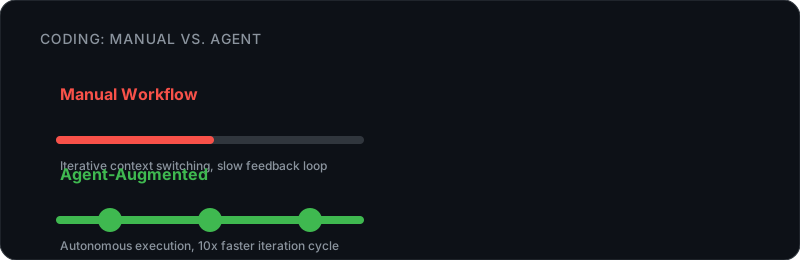
The iteration loop is where this pays off. The agent writes a function, runs the tests, sees a failure, fixes it, and tries again. A cycle that takes you fifteen minutes takes the agent thirty seconds. Module 5 goes deeper on how this loop works and when it breaks down.
Two Flavors
CLI agents run in your terminal: Claude Code, Gemini CLI, OpenCode, and others. They handle codebase-wide changes, shell commands, and complex multi-file tasks.
tools embed in your editor: Cursor, GitHub Copilot, Windsurf. Inline autocomplete, chat panels, and visual diffs. Great for focused edits and learning unfamiliar code.
In practice most developers use both: IDE tools for moment-to-moment coding, CLI agents for bigger architectural work.
Local Models for Coding
Many agents accept local models via Ollama. Local handles routine work well: refactoring, test writing, boilerplate, explaining unfamiliar code. Complex multi-file reasoning still benefits from larger cloud models, so most developers use local for everyday tasks and reach for cloud when things get hard. Module 7 covers this decision in detail.
Going deeper: Agent architectures and how frameworks work are in Module 5: Agents. Programmatic access, MCP setup, and RAG pipelines are in Module 6: Build Custom Tools.
Agents: AI That Takes Action
Everything so far has been reactive: you ask, the model answers. An agent works differently. You give it a goal and it figures out the steps on its own.
The Agent Loop
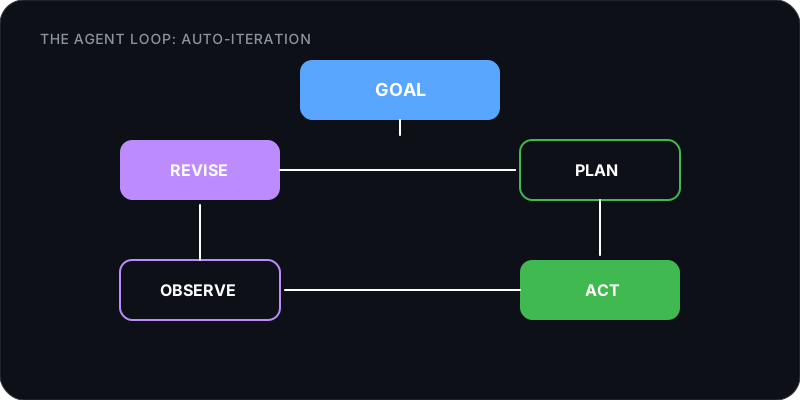
The loop works like this: the agent receives a goal, breaks it into a plan, takes an action (calling a tool, writing code, making a request), observes the result, and revises the plan based on what happened. Then it repeats. It keeps going until the goal is met or it runs out of steps.
A coding agent writing a function follows this loop. So does a research agent gathering information from multiple sources. The loop is the same. What changes is the set of tools the agent can use.
Tool Use
Tools are what separate an agent from a chatbot. File access means it can read and write documents. Web search means it can look things up in real time. Code execution means it can run scripts and check the results. API calls connect it to services like email, calendars, and databases.
(Model Context Protocol) is the emerging standard for connecting models to tools. Add an MCP server for GitHub and your agent can read issues and create pull requests. Add one for Slack and it can send messages. The growing MCP ecosystem is covered in Module 8.
What’s Realistic Today
Agent quality depends on the model. A 9B model handles straightforward, well-defined tasks. A 32B model manages multi-step workflows with real decision-making. Some realistic examples with a capable local model:
- Summarize today’s news from a set of RSS feeds and save a brief to a file
- Monitor a folder for new documents and process each one (rename, categorize, extract data)
- Read customer reviews and generate a structured report with themes and sentiment
- Watch a log file and alert you when specific patterns appear
Complex tasks spanning multiple tools or requiring creative judgment still benefit from a human in the loop. The agent handles the tedious parts while you steer.
Automating the Boring Stuff
Once you’ve seen what a model can do with a single prompt, you can automate the patterns you use most.
Command-Line Pipelines
The simplest automation: pipe text through your model from a script. Loop over a folder of files and write a summary for each one. Classify a batch of emails by piping them into a single prompt. Process images with a multimodal model. Because the model runs locally, these scripts cost nothing and have no rate limits. You can run them on a cron job, trigger them from a file watcher, or chain them with other command-line tools the same way you’d use grep or awk.
Scheduled Tasks
Combine model calls with cron jobs for hands-off automation. A daily summary of server logs. A weekly digest of new files in a shared folder. A nightly classification of support tickets.
When to Automate
If you find yourself typing the same kind of prompt more than three times, automate it. File processing, report generation, data extraction, and classification are all strong candidates. Anything that needs fresh judgment each time should stay interactive.
Building complex pipelines? Module 6 covers programmatic model access and structured output. Module 5 goes deep on multi-agent orchestration. This section is about what you can do with shell scripts and Ollama.
What’s Next
If you want to understand agent architectures and when they break, Module 5: Agents covers that in depth. For building your own tools and integrations, Module 6: Build Custom Tools. For figuring out when to use cloud models instead, Module 7: Local + Cloud.